What is DNS lookup? Published: 26 May, 2026
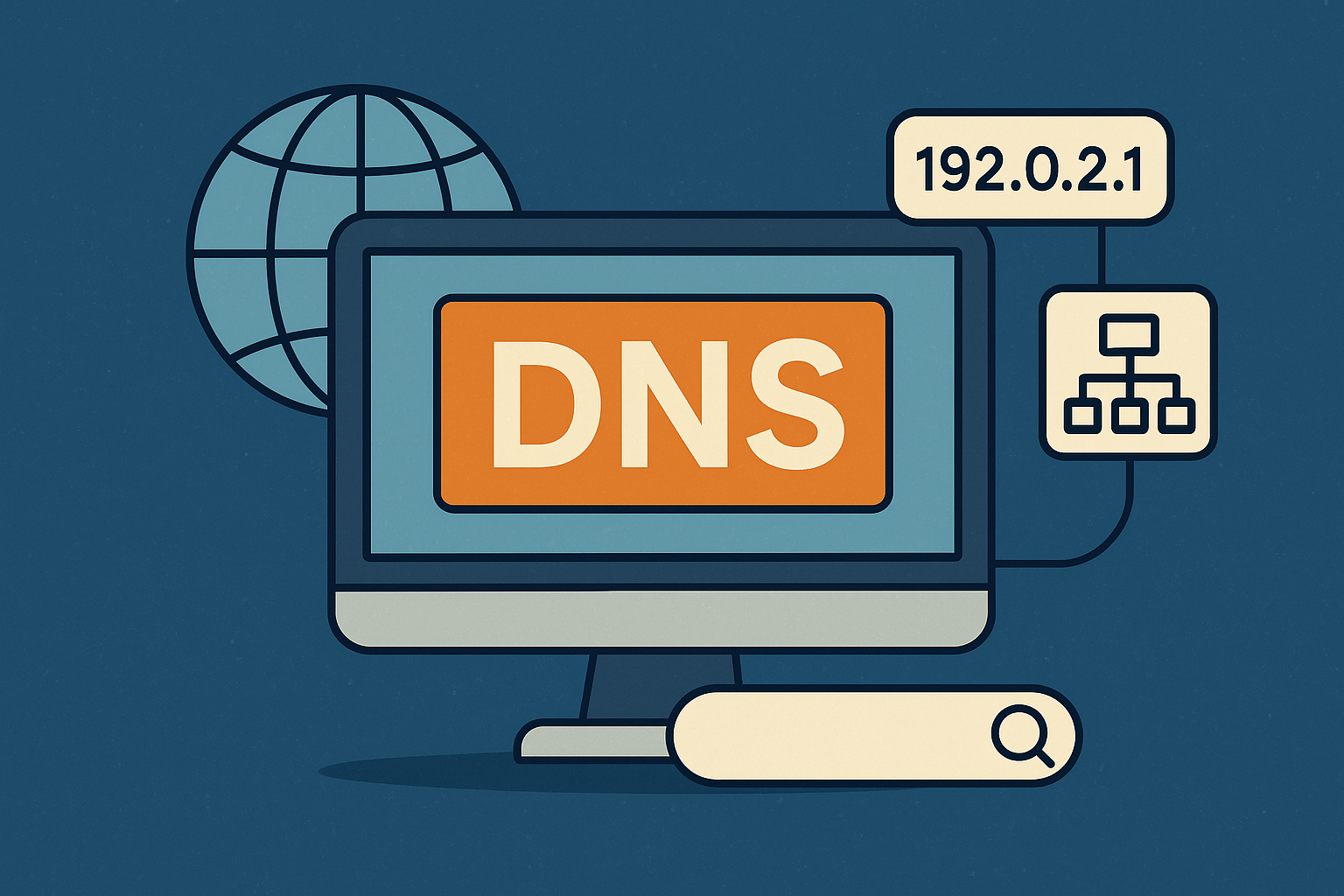
When you open a website, your browser does not type a domain name into the network—it needs a numeric address. DNS lookup is the process of asking the Domain Name System: “What IP address belongs to this hostname?” and reading back the answer. Whether you are fixing email, debugging a site outage, or researching a domain, DNS lookup is the first technical step after WHOIS.
What is DNS in simple terms?
The Domain Name System (DNS) works like a distributed phonebook for the internet. Humans remember whoisseo.com; routers and servers use addresses such as 192.0.2.1. DNS stores records that link names to addresses and other data (mail servers, verification strings, name servers).
A DNS lookup is a single query (or chain of queries) that returns those records for a given domain. You can run lookups from your computer with command-line tools, or use a web-based checker that queries public resolvers and formats the results.
How DNS lookup works (step by step)
- You enter a domain — for example
example.comor a subdomain likewww.example.com. - Resolver asks the hierarchy — typically: root → TLD (.com) → authoritative name servers for the domain.
- Authoritative server responds — with A/AAAA (addresses), MX (mail), NS (delegation), TXT (text), CNAME (aliases), and more.
- Your tool displays the result — TTL (time to live), record values, and sometimes errors if the name does not exist.
Lookups are usually fast (milliseconds), but propagation delays can occur after DNS changes—old values may still be cached until TTL expires.
Common DNS record types you will see
Most DNS lookup tools group results by record type. The ones you will use most often:
- A record — IPv4 address for a hostname (e.g. website hosting).
- AAAA record — IPv6 address.
- MX record — mail servers; priority determines order.
- NS record — which name servers are authoritative for the zone.
- TXT record — verification (SPF, DKIM, domain ownership), policies, and misc text.
- CNAME record — alias pointing to another hostname.
On WhoisSEO DNS lookup, you can enter a domain and see A, NS, MX, TXT, SOA, and AAAA records in one view—useful when you do not want to run multiple terminal commands.
DNS lookup vs WHOIS lookup
Beginners often confuse the two:
- WHOIS — registration data: registrar, creation/expiry dates, registrant (if not redacted), status. Try WHOIS lookup on WhoisSEO.
- DNS lookup — technical routing data: where the site and mail actually point right now.
For a full picture of a domain, use both. Registration can be at one registrar while DNS is hosted elsewhere (Cloudflare, Route 53, cPanel, etc.). See also can you trace a website owner? and what are DNS records?.
Why run a DNS lookup?
- Site not loading — confirm A/AAAA records point to the expected host.
- Email problems — verify MX records and SPF/DKIM in TXT.
- After migrating hosting — check that NS and A records updated.
- Security review — spot unexpected NS or TXT changes.
- SEO and redirects — ensure www vs apex resolves correctly before changing canonical URLs.
Forward vs reverse DNS lookup
Forward lookup: domain name → IP (what most “DNS lookup” tools do).
Reverse lookup: IP → hostname (PTR records). That is closer to IP lookup and geolocation tools. If you only have an IP, use IP tools first; if you have a domain, use DNS lookup.
How to check DNS for any domain (free)
- Go to https://whoisseo.com/dns-lookup/ and replace
example.comwith your domain, or use the DNS lookup home page and search. - Review A/AAAA for web hosting, MX for mail, NS for who controls DNS.
- Compare with what your host or registrar dashboard shows—they should match when propagation is complete.
- If results differ worldwide, wait for TTL or check with a common DNS failure guide.
Indexable result pages (one URL per domain) also help search engines understand your tool site—similar to WHOIS result URLs.
Limits and accuracy
DNS lookup shows what resolvers return at query time, not historical changes. Cached answers may be stale for minutes or hours. Some domains use DNSSEC or geo-based responses (different answers per region). Privacy services and CDN proxies (e.g. Cloudflare orange-cloud) may hide the origin IP in A records—that is expected.
WHOIS privacy does not hide DNS; if the site is live, DNS still exposes where it points unless proxied.
Quick troubleshooting checklist
- NXDOMAIN — domain or subdomain does not exist in DNS.
- No A/AAAA — name exists but no web address configured.
- Wrong NS — zone managed at unexpected provider; update at registrar.
- MX missing — email will not deliver to that domain.
- High TTL after changes — wait or lower TTL before future migrations.
Conclusion
DNS lookup translates domain names into the records that make websites and email work. You do not need to be a network engineer: a clear tool that shows A, MX, NS, and TXT records is enough for most tasks. Start with WHOIS for ownership context, then DNS for live technical truth—and use dedicated URLs like /dns-lookup/yourdomain.com to document and share results.
Related reading: Simple explanation of DNS for beginners · Domain vs hosting differences · What is an A record? · Free DNS lookup tool